OsmAnd 2.0 (iOS)

New OsmAnd for the iOS platform has been released! We're glad to present a bundle of new features, so let's begin.
Navigation
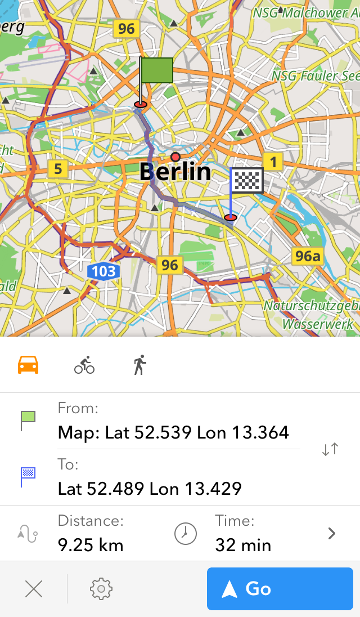
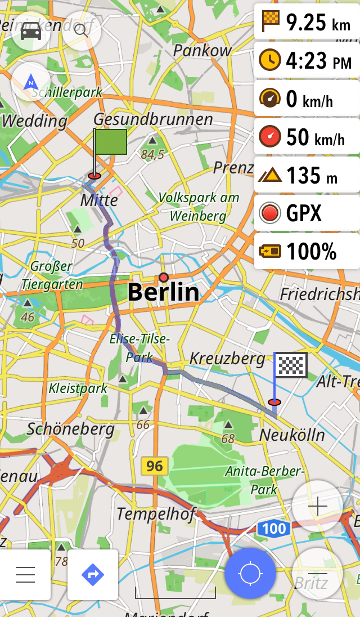
The first feature is also probably the most requested one since the introduction of OsmAnd on iOS. Yes, the app now offers navigation between two points. Creating routes is easy: just press the navigation button on the map screen or in the main menu, then select the starting point and the destination. After the route is created, press 'Go'.
 |  |
|---|
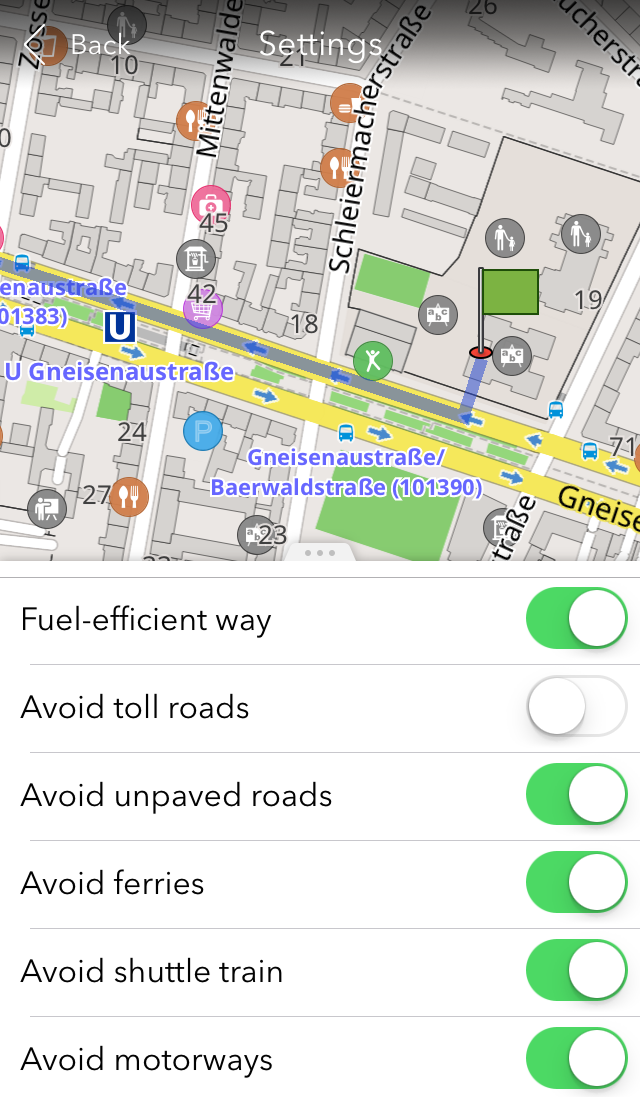
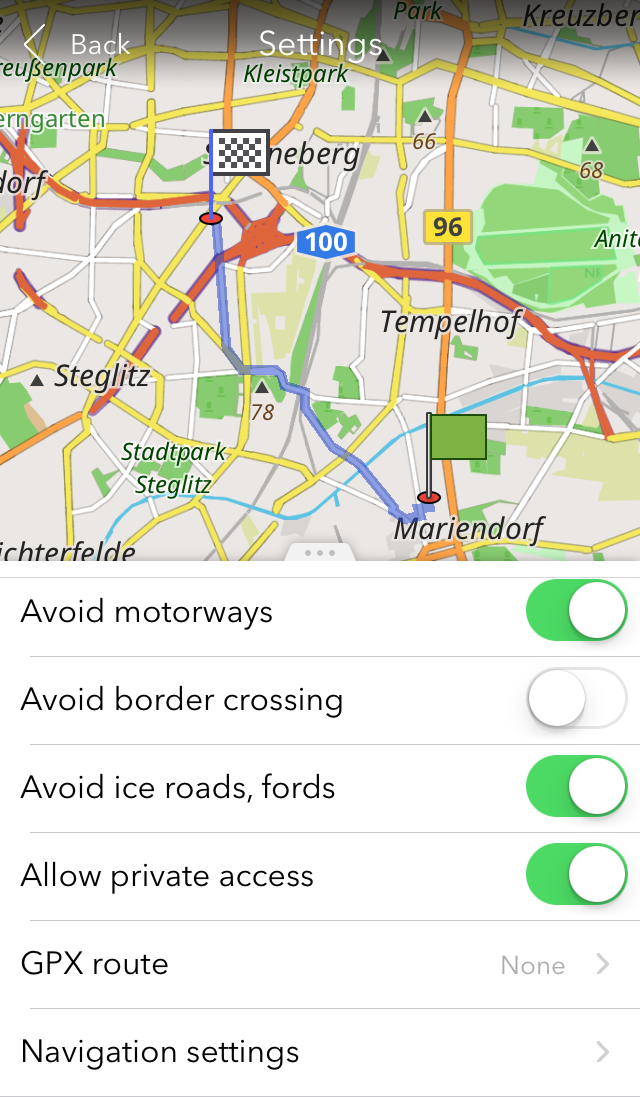
If you press the gear button in the navigation context menu, you'll also see a list of settings helping you to adjust the route. You can select to avoid border crossing, motorways, ice roads, fords, etc. It's also possible to pick a fuel-efficient way or follow a GPX track.
 |  |
|---|
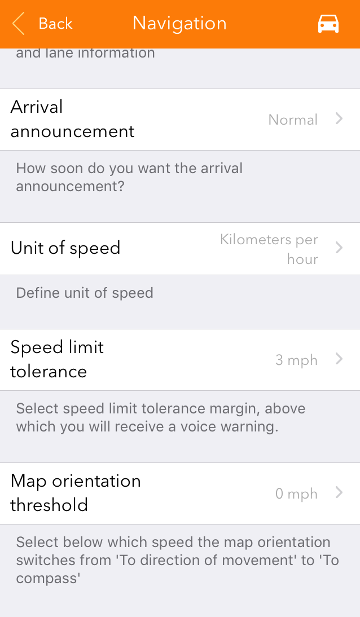
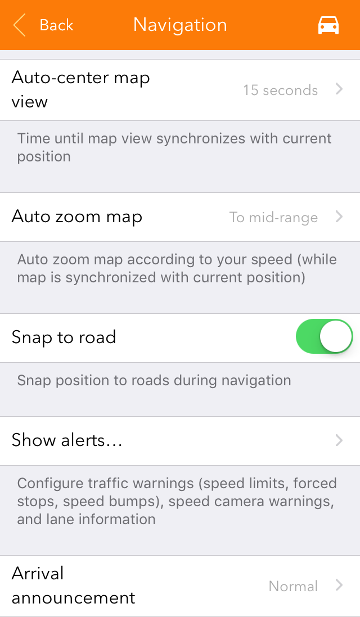
You'll see the 'Navigation settings' bar at the very bottom of this list. There, you can select to take the fastest route, set the weight and height limits for your vehicle, select which announcements you'd like to hear during navigation and which alerts to view on screen, etc. Users can set 'Map orientation threshold'. You choose a speed setting, below which map orientation switches from 'To direction of movement' to 'To compass'. Moreover, you can adjust the speed limit announcements in the 'Speed limit tolerance' menu. For example, if it is set to 10 km/h and the limit at a current road is 60 km/h, you'll get notified as soon as you reach 70 km/h. If your GPS signal is unstable, you can try the 'Snap to road' function that is enabled by default. It 'sticks' your GPS location to the route during navigation.
 |  |
|---|
New interface
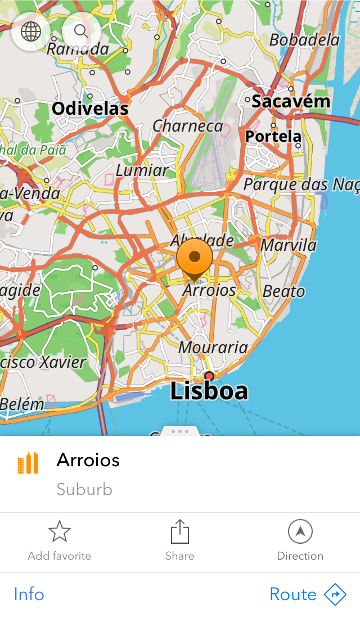
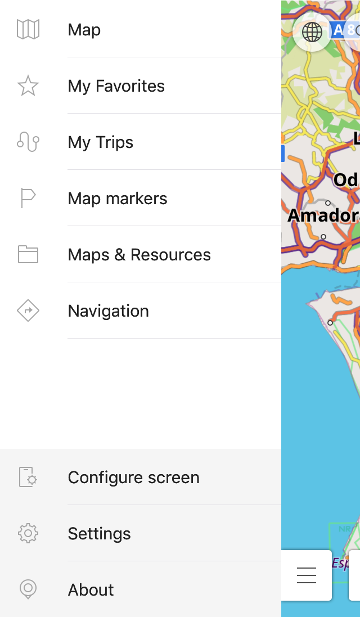
OsmAnd now has a new interface style with a minimalistic white and grey palette for your utmost comfort. The Settings menu now has 2 submenus allowing you to adjust general and navigation settings.
 |  |
|---|
Widgets
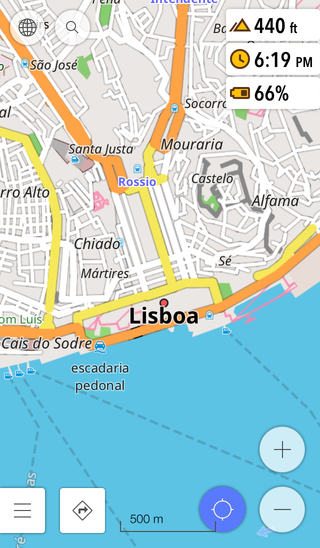
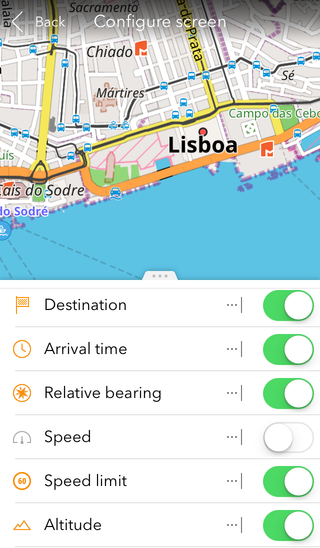
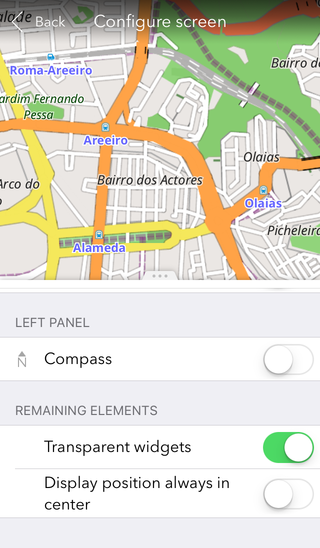
OsmAnd 2.0 now has the widget system similar to the one presented in the Android version. Go to 'Configure screen' menu to enable the ones that are relevant to you. Some of them only appear during navigation, like Destination, Arrival time, Speed limit, Speed, etc. Others stay on the map screen all the time. Those are Relative bearing, Altitude, Current time, Battery level. You can change the widgets anytime. Also, you can make the widgets transparent or opaque. Use the 'Transparent widgets' option in the 'Configure screen' menu to choose the setting you need.
 |  |  |
|---|
Day and night map modes
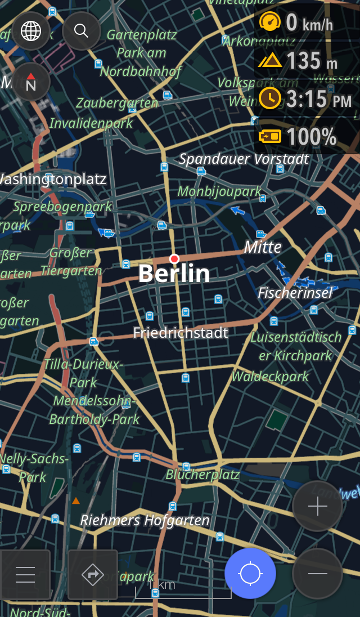
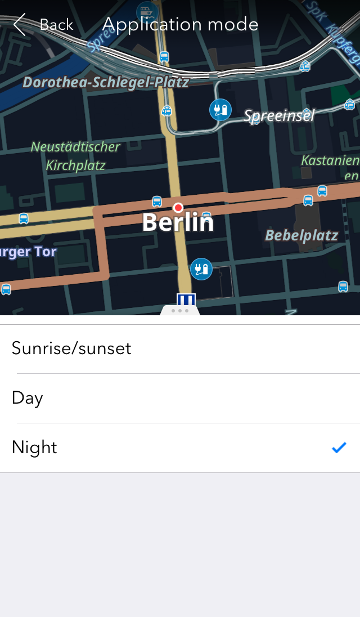
We also added a new feature created to support eye comfort: the 'day' and 'night' modes of the map. The night mode has lower contrast and a darker theme to prevent eye strain. You can switch between the modes manually in Map > Application mode. The modes also switch automatically at the times of sunrise and sunset in your time zone.
 |  |
|---|
And remember that only together we can achieve the best results! New features are coming SOON!
Join us at our groups of Telegram (OsmAnd News channel), (EN), (IT), (FR), (DE), (UA), (ES), (BR-PT), (PL), (AR), (TR).
