Color Schemes
Overview
Color schemes are used as part of paid Maps+ and Pro  features.
Color schemes are used in route colorization, map terrain, and weather map, and are represented as a separate part of the information that can be exported, imported, and edited to change the map color scheme and data visualization.
Color palette data is available in the Maps & Resources menu.
- Android
- iOS
Go to: Menu → Maps & Resources → Local → Colors
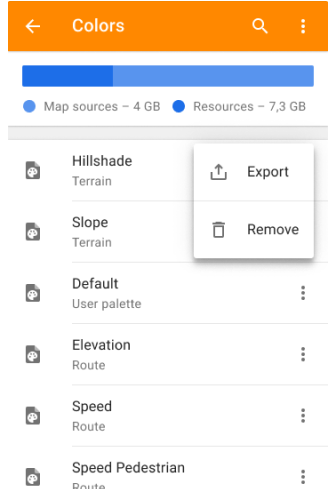
Go to: Menu → Maps & Resources → Local → Colors
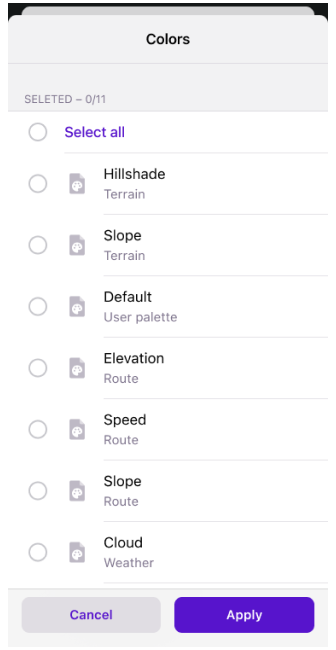
Scheme Types
Terrain
- Android
- iOS
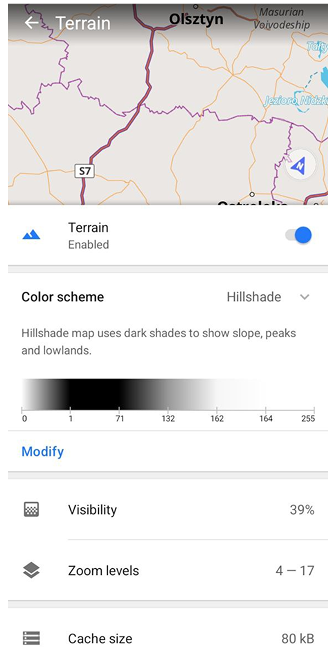
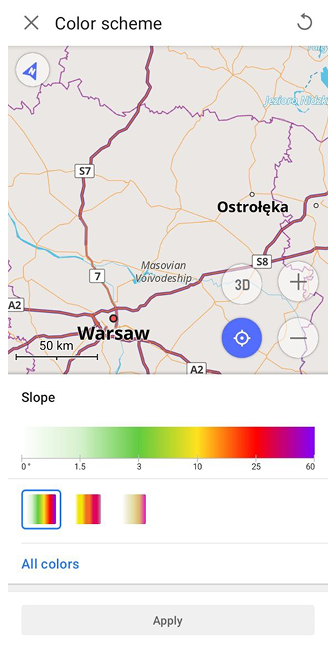
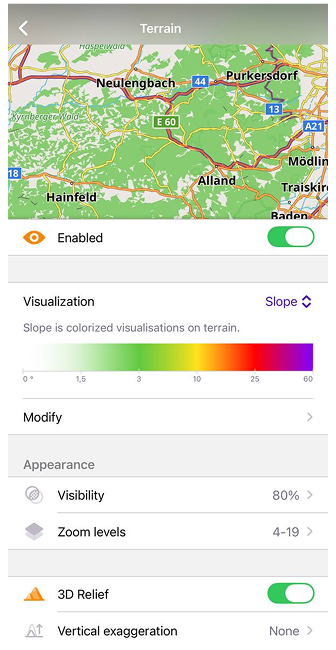
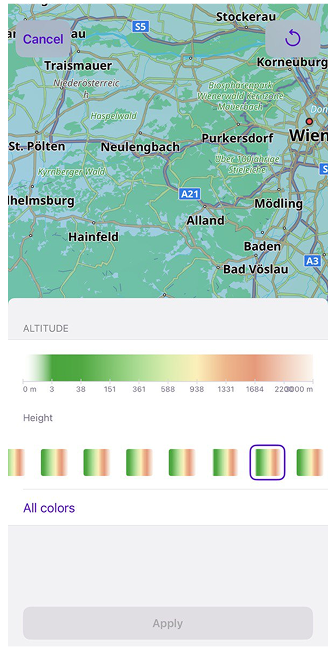
Terrain files (height_altitude_<type_name>.txt, hillshade_color_<type_name>.txt, slope_<type_name>.txt) define 3 terrain visualizations: Hillshade, Slope, and Altitude. For each type you can have multiple palettes, for example, avalanche slope is provided by default. See the Topography article for more details.
Palettes for Slope and Altitude color schemes can also be created or edited directly in the app using the Color Palette editor. This is a paid feature .
Tracks & Routes
- Android
- iOS
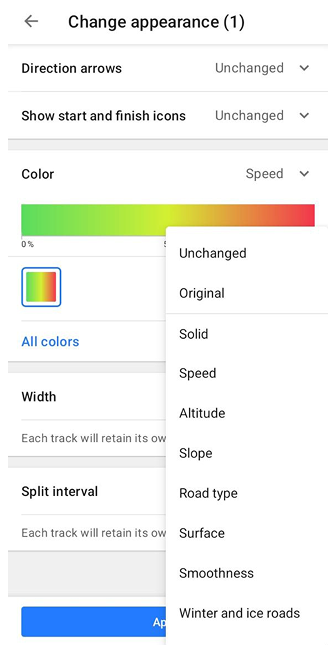
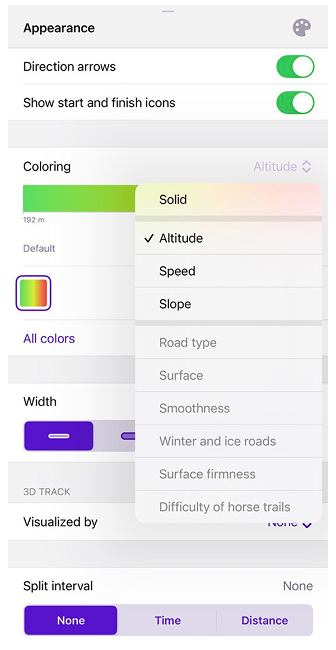
Line gradient visualizations uses palette files (route_<type_name>_<palette_name>.txt) to color GPX tracks and Routes:
- For Routes: Speed (
route_speed_default.txt), Slope (route_slope_default.txt), and Elevation (Altitude) (route_elevation_default.txt). - For GPX Tracks: Speed, Slope, Max Speed (
route_maxspeed_default.txt), and Elevation (Altitude), or info from External sensors.
Palettes can also be created or edited directly in the app using the Color Palette editor. This is a paid feature .
Favorites & Waypoints
- Android
- iOS
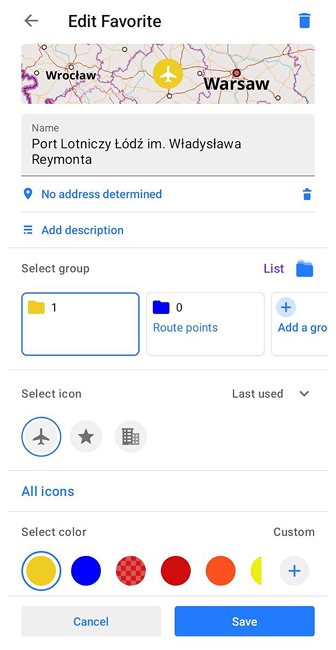
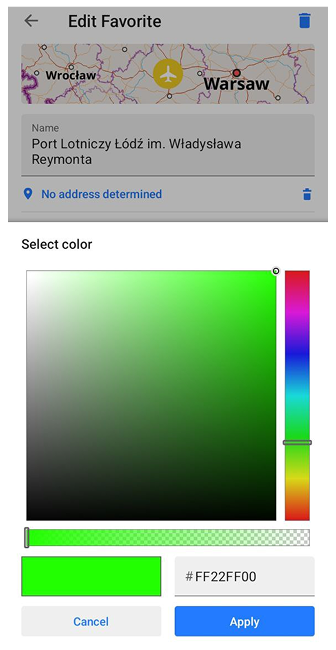
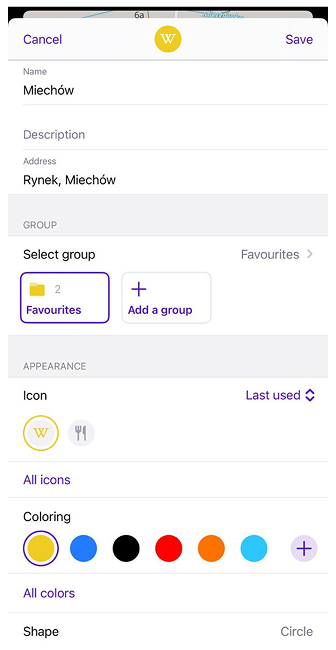
The user_palette_default.txt palette is used for predefined colors assigned to Favorites and Waypoints.
Weather
Weather palette files (weather_cloud.txt, weather_precip.txt, weather_pressure.txt, weather_temperature.txt, weather_wind.txt) defines visualization for weather layers.
Settings
Palette Modify
You can edit palettes to personalize the look for maps, and routes. Own color palette files can be added to OsmAnd using the import/export tool.
- Tracks and Routes:
route_speed_<type_name>.txt,route_slope_<type_name>.txt,route_maxspeed_default.txt,route_elevation_default.txt. - Terrain:
height_altitude_<type_name>.txt,hillshade_color_<type_name>.txt,slope_<type_name>.txt. - Weather:
weather_<type_name>.txt. - Favorites and Waypoints:
user_palette_default.txt.
Each line represents a numerical value (for the color palette, it's an index) and RGB color. For example:
# TXT file named *height_altitude_0-200.txt* \{#txt-file-named-heightaltitude0-200txt}
# 0 - 90 degree RGBA \{#0---90-degree-rgba}
0,46,185,0,191
# yellow  \{#yellow-}
100,255,222,2,227
# red \{#red}
200,255,1,1,255
# violet \{#violet}
220,130,1,255,255
After moving this TXT file to ..Android/data/net.osmand/files/color-palette/height_altitude_0-200.txt, a new palette will appear in the Color Scheme menu.
If you need to change an existing palette file inside OsmAnd (instead of adding a new TXT file), you can edit it through an exported backup (.osf).
- Export the palette data as an .osf backup (see the Import / Export section below).
- Unzip the exported .osf. The .osf file is a renamed .zip archive. Make a copy of the original .osf file, then unzip it using any archive tool.
- Find and edit the palette TXT file. Inside the extracted folders, locate the needed palette file (for example: height_altitude_<type_name>.txt or route_speed_<type_name>.txt) and edit its values in a text editor.
- Zip back and rename to .osf. Zip the extracted content back into a .zip archive, then rename it to .osf. Keep the same folder structure.
- Import the updated .osf into OsmAnd (see the Import / Export section below) and restart the app to apply changes.
Import / Export
- Android
- iOS
Go to: Menu → Settings → Import/export → Export to file
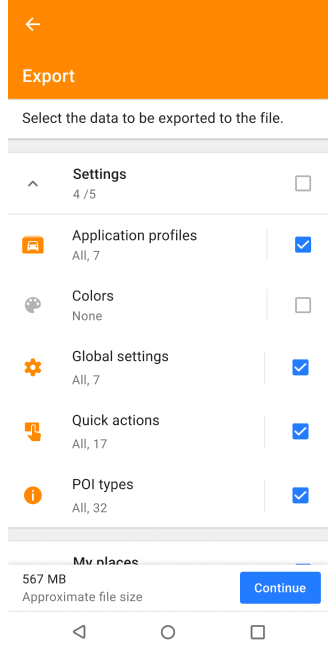
Go to: Menu → Settings → Local backup → Back up as file
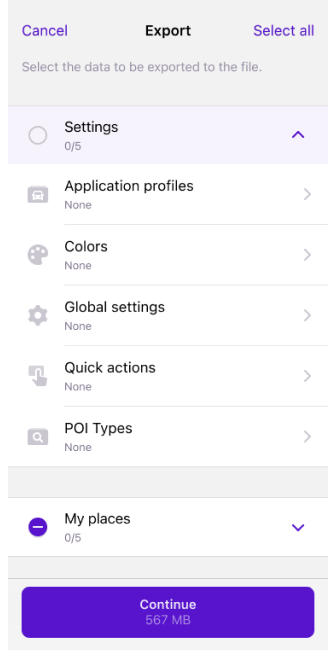
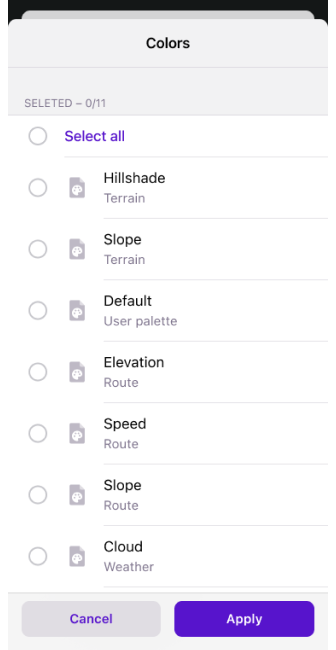
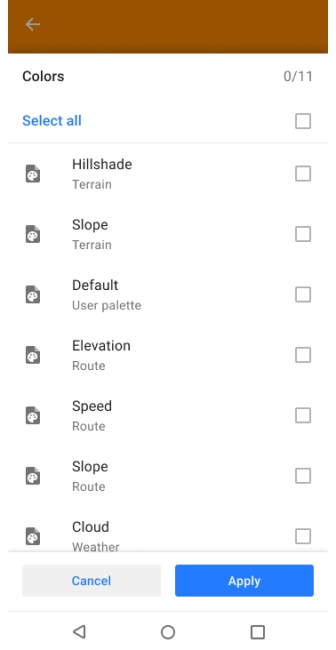
You can import and export all available default and custom color palettes using OsmAnd's restore and backup files tool.
- Open the main Menu, Settings, scroll down to the Import/export (Android) or Local Backup (iOS) section, and select the required action.
- Select one or more items from the Color list or the Select All option.
- All exported files are saved in
.osfformat. - If the size of your selected data is significant, it will take some time for the application to prepare the
.osffile. - View Import / Export article for more detailed information.
Legend
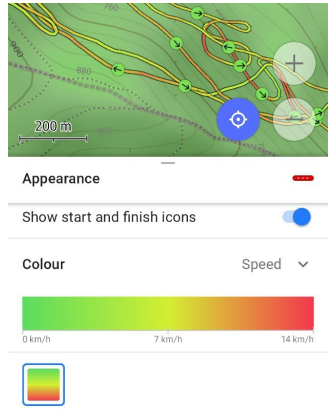 | 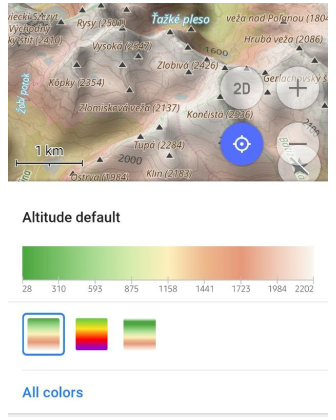 | 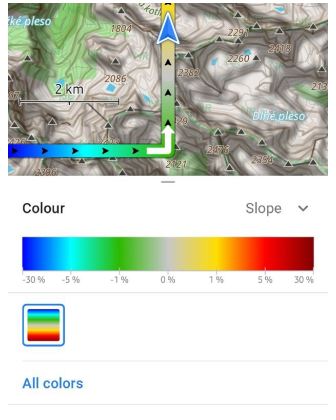 |
The legend provides an easy way to view and understand the different markings on the map. New color palettes have been added to display speed for tracks, line type for routes, altitude and slope for terrain, and all weather layer color palettes.
The legend is generated automatically based on the selected palette and shows gradient steps with appropriate units (for example, km/h for speed, % for slope, or meters for altitude).
Quick actions
- Android
- iOS
Go to: Menu → Configure screen → Buttons → Custom buttons → "+" → Add button → Add action → Configure map → Change Terrain color scheme
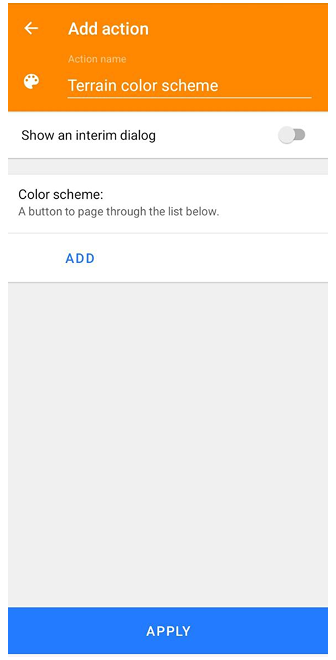
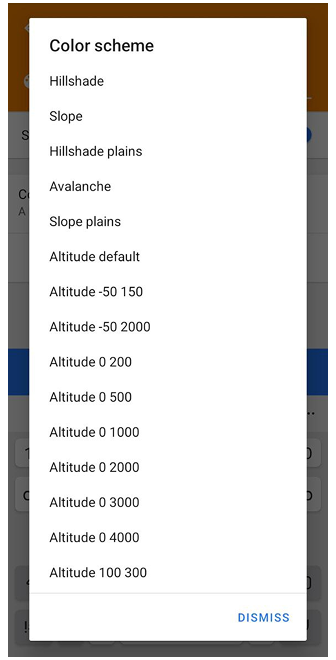
Go to: Menu → Configure screen → Buttons → Custom buttons → "+" → Add button → Add action → Configure map → Change Terrain color scheme
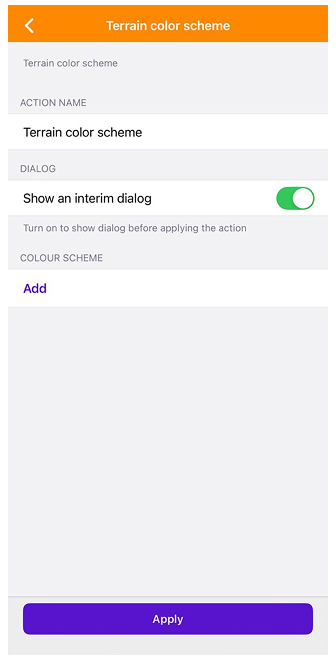
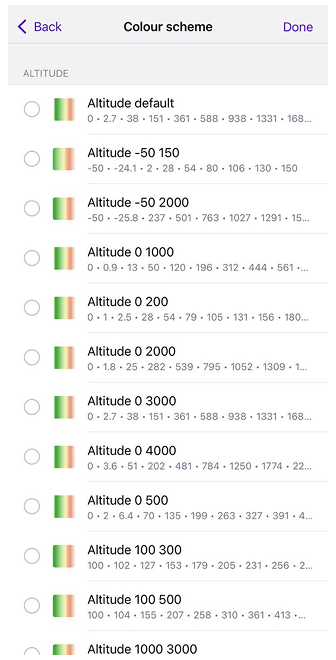
Quick Action to change the palette for Terrain. Added the ability to switch between terrain color schemes, similar to switching between layers. This can be done using the Quick Actions tool.
When configuring this action, you can select one or multiple terrain color palettes. If several palettes are selected, each tap on the button will cycle through the chosen palettes. You can also enable or disable the interim dialog to either show the full list of palettes or switch between them silently in a predefined order.