Global Map on the Website
Overview
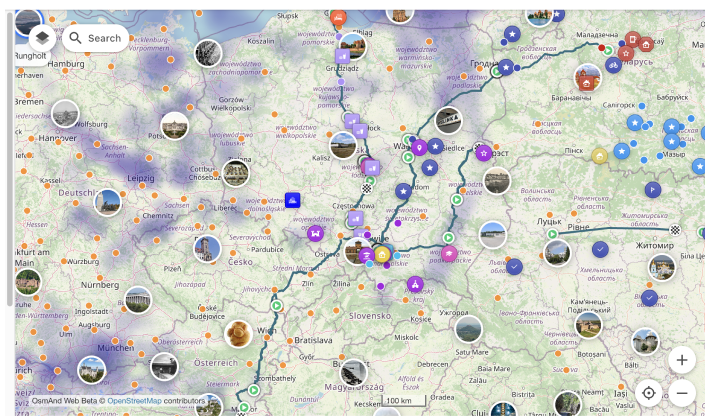
The OsmAnd web map is a global map based on OpenStreetMap (OSM) data. It allows users to view their own data, such as tracks and favorites, create navigation routes for any profile, and access additional features like weather, public GPX tracks, POIs, and Wikimedia images. Explore and customize your data experience directly in your browser.
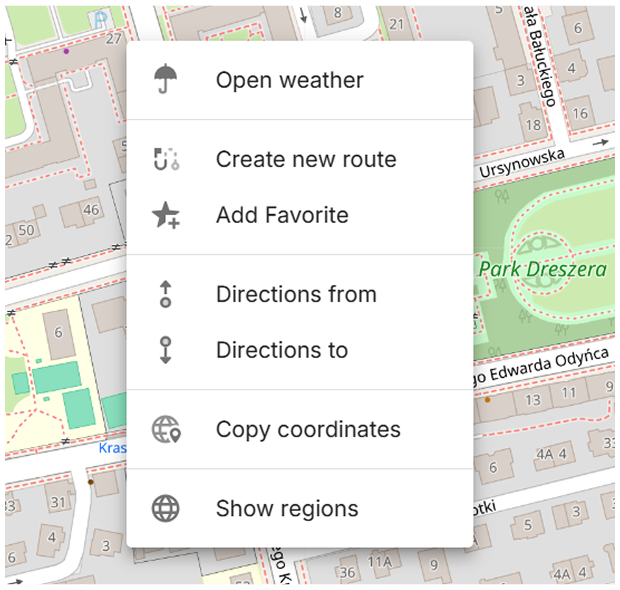
Map Context Menu
For opening it right click anywhere on the map. This menu includes the following actions:
- Open weather – Access the Weather menu to view weather details.
- Create new route – Opens the Plan a route tool with the selected location as the starting or destination point.
- Add Favorite – Allows you to create and save a favorite at any point on the map for easy access.
- Directions from – Sets the selected point as the starting location for navigation.
- Directions to – Sets the selected point as the destination for navigation.
- Copy coordinates – Copies the coordinates of the selected point for external use.
- Show regions – Displays the regions associated with the selected location.
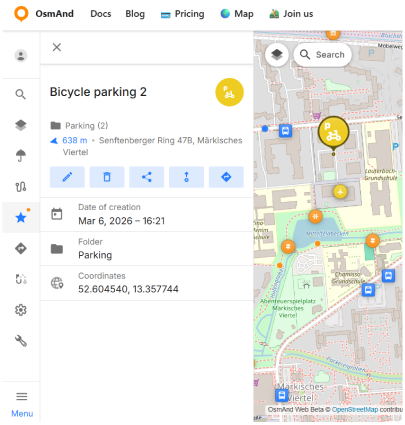
Selected Object
When an object on the map (such as a POI, favorite, or navigation point) is selected, it is highlighted with a larger pin. Only one object can be selected at a time.
If the selected object is already visible on the screen, the map does not move. If it is outside the current view, the map centers on it without changing the zoom level.
The selected marker remains visible when zooming the map.
Nearby markers may be hidden to make the selected object easier to see.
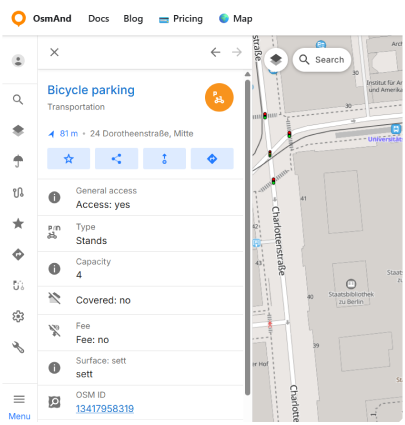
When the OsmAnd vector (beta) map type is enabled, you can select objects directly on the map, including POIs, buildings, house numbers, and public transport stops. When you hover over a selectable object, the pointer changes to a pointing hand. Objects without a name or an icon, such as unnamed roads and footpaths, cannot be selected.
Selecting an object opens its details panel:
- POI — the panel shows the same information and quick actions as in Search results and the POI overlay.
- Object without POI data — for example, a building or a house number. The panel shows the object type, address, and coordinates.
- Public transport stop — the panel can also include the Routes section with the transport type filter, as described in Transport stops.
If several objects are located at the selected point, the panel shows them one at a time. Use the arrows next to the close button to switch between them. The back arrow appears starting from the second object, and the forward arrow is inactive on the last one.
Configure Map Menu
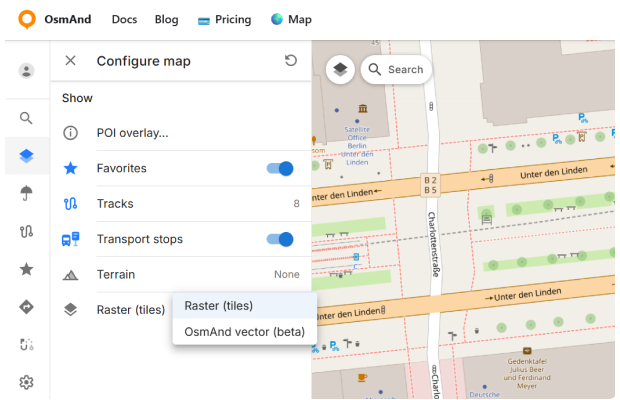
The Configure Map menu allows you to manage the display settings for map data, such as POI layers, favorites, tracks, terrain, and map type. This menu is available after you sign in to your OsmAnd account. To open it, click the button in the top left corner or access it through the Menu.
- POI overlay.... Allows you to choose and show needed POI categories on the map.
- Favorites. Toggle the display of favorites on the map.
- Tracks. Contains GPX tracks visible on the map.
- Transport stops. Toggle the display of public transport stops on the map.
- Terrain. Enable or disable the terrain color scheme on the map.
- Raster (tiles) / OsmAnd vector (beta). Shows the map type currently in use and lets you switch between the raster and vector map.
POI overlay
The POI overlay feature lets you display Points of Interest (POIs) on the map by selected categories. This is useful when you want to browse places directly on the map.
To open the overlay: Configure map menu → POI overlay...The overlay list contains 18 categories. You can enable one category or enable multiple categories in any combination. When at least one category is enabled, the overlay provides a Deselect all action to clear the selection at once.
Note: If you are looking for a specific place, you can also use the Search section on the map.
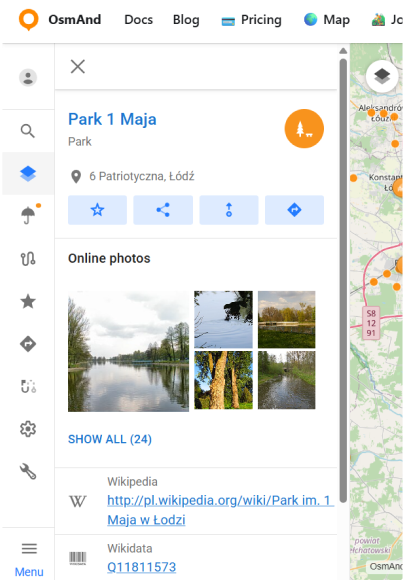
Once POIs are displayed, selecting a POI marker on the map opens its details panel that shows information available for that object. Depending on the POI, it can include: place name and type, address, contact fields, OSM-related identifiers and coordinates, reference links (Wikipedia, Wikidata), when present.
For POIs that have online photos, the details panel shows an Online photos block with thumbnails. Show all opens a gallery view with the full photo list. In the photo viewer, OsmAnd Web displays photo metadata when available, including: date, author, license, and description.
In the POI details panel, quick actions are available from the action buttons:
- Add to Favorites — saves the POI to your Favorites.
- Share — generates a shareable link that opens the POI directly in OsmAnd Web. The link includes the POI name, type, and coordinates (pin).
- Directions from — sets the selected POI as the start point and opens the Route panel so you can choose a destination and profile.
- Navigation — sets the selected POI as the destination point for navigation.

Favorites
With one click, you can toggle favorites on or off on the map. However, only favorites with Show on map enabled will be displayed.
Tracks
This section contains a list of your GPX tracks visible on the map and Recently Visible tracks.
- You can toggle tracks on or off directly.
- Switch tracks on or off from the Recently Visible list.
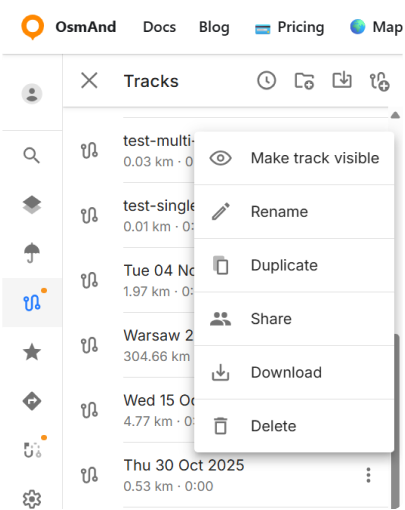
Each track has a menu (⋮) with the following commands:
- Hide track: Hides the currently visible track from the map.
- Make track visible: Displays a track from the Recently Visible list on the map.
- Rename: Allows you to rename the track for easier identification.
- Duplicate: Creates a copy of the track.
- Share: Opens the sharing screen (same as for Favorites).
- Download: Saves the track to your local device.
- Delete: Removes the track permanently from the list.
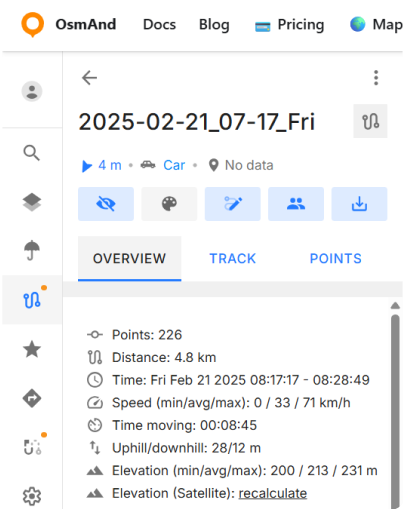
When you open a track, a panel with a top action bar is displayed. The bar shows the track name and provides quick access to actions. In addition to the three-dot menu commands, the top bar includes Edit. Appearance is currently not active.
The track panel includes the following tabs:
- Overview — shows general track information.
- Track — currently not implemented.
- Points — shows waypoints and route points grouped by type.
Transport stops
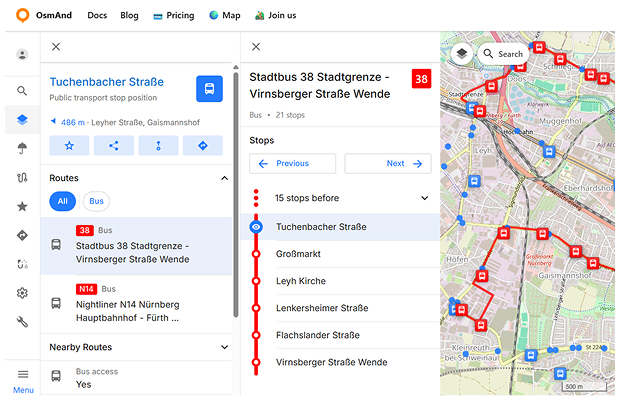
The Transport stops option allows you to display public transport stops directly on the map. When enabled, stop markers appear across the map, representing locations where public transport routes stop. Selecting a transport stop opens a context panel with information about that stop and the transport routes that pass through it. The stop panel contains several sections.
1. Stop information
The top section shows basic information about the selected stop, including its name and location. Quick action buttons allow you to: Add the stop to Favorites, Share a link to the stop, Start navigation from the stop, Set the stop as a destination.
2. Routes
The Routes section lists all public transport routes that pass through the selected stop. Each item displays: the transport type, the route number, and the route name.
Selecting a route opens a route details panel showing additional information about that route, including the number of stops and the average interval between vehicles (when available).
The route details panel also displays the full list of stops along the route. The currently selected stop is highlighted, and you can select another stop to view its location on the map. Stops before the selected stop may be collapsed into a single item (for example “15 stops before”).
Navigation buttons allow you to move between stops along the route using the Previous and Next controls. When a stop is selected, its location is highlighted on the map. The selected route and its stops are also displayed on the map to help visualize the route direction.
3. Transport type filter
A transport type filter allows you to filter the routes shown in the list. By default, the filter is set to All and displays all available routes. You can select a specific transport type (for example Bus, Tram, or Subway) to show only routes of that type. The filter resets to All each time the stop panel is opened.
4. Nearby routes
The Nearby routes section may display additional routes located close to the selected stop. This helps you quickly discover alternative transport options in the surrounding area.
Terrain
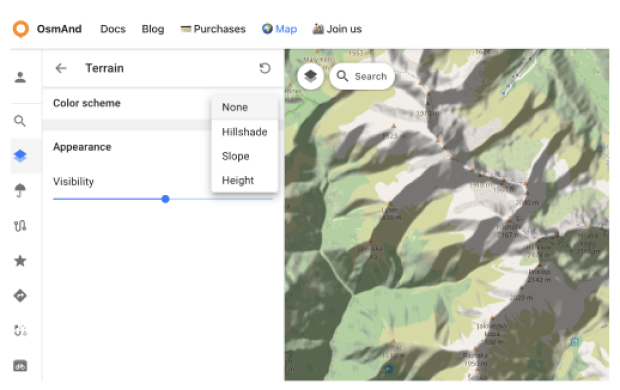
The Terrain section is a paid feature  . To use this feature, you must first log in to your OsmAnd Pro account.
In this section, you can:
- Choose a color scheme for terrain:
- Hillshade
- Slope
- Height
- Adjust the visibility of the selected terrain layer from 0% to 100%.
Map type
Select the map type item in the Configure Map menu to choose one of the following:
- Raster (tiles) — the default map type. On this map type, you can select only markers displayed over the map, such as Search results, POI overlay markers, favorites, and transport stops.
- OsmAnd vector (beta) — the vector map. On this map type, you can select objects directly on the map.
The selected map type is saved and applied the next time you open the map. Reset to default in the Configure Map header switches the map back to Raster (tiles).
The vector map requires a browser with WebGL support. If WebGL is not available, the map automatically switches to Raster (tiles).
Settings
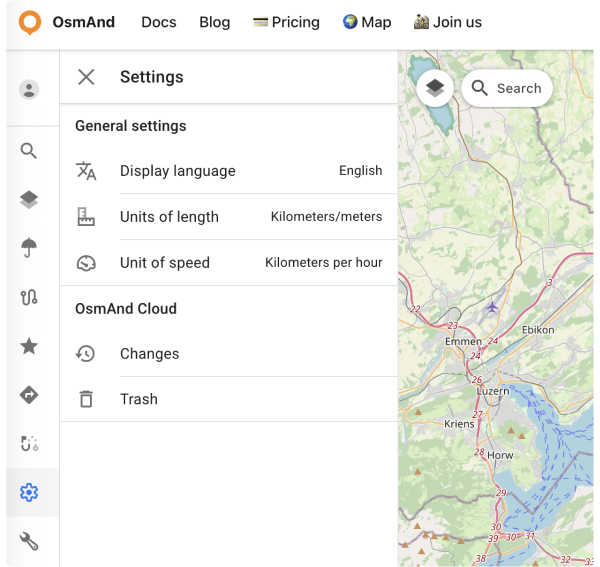
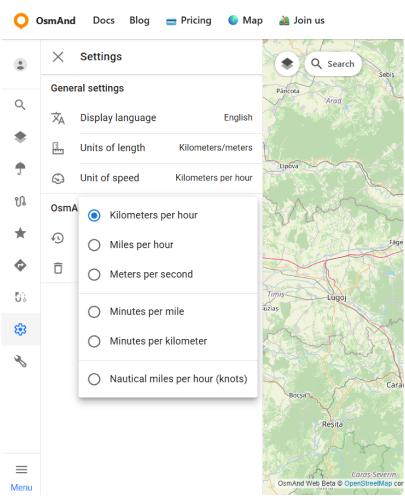
In the Web Planner, the General settings (Display language, Units of length, Unit of speed) are available for all users, whether you are signed in or not. Once you log in with your OsmAnd account, an additional OsmAnd Cloud section appears in the Settings panel. You can read about OsmAnd Cloud here.
Language
To switch the interface language:
Go to: Menu → ⚙ Settings → Display language
Units
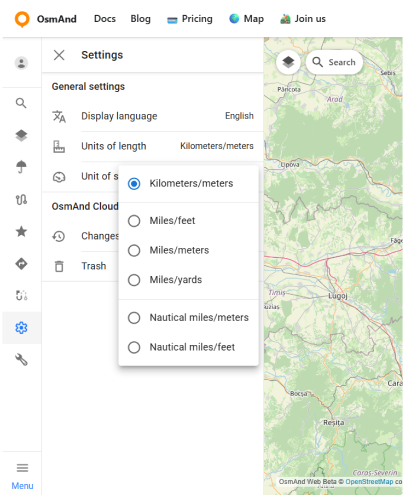
Go to: Menu → ⚙ Settings → Units of length
Go to: Menu → ⚙ Settings → Unit of speed
You can choose which units are used to display distance, elevation and speed on the map, in route details and in measurement tools. This helps you keep OsmAnd consistent with your usual habits or regional standards.
The Units of length option defines how horizontal distance and elevation are shown:
- Kilometers/meters.
- Miles/feet.
- Miles/meters.
- Miles/yards.
- Nautical miles/meters.
- Nautical miles/feet.
For example, a distance of 10 km will be shown as about 6.21 mi if you choose one of the Miles/... options, or as about 5.40 nmi when Nautical miles/... is selected.
The Unit of speed option controls how current speed and speed limits are displayed:
- Kilometers per hour.
- Miles per hour.
- Meters per second.
- Minutes per mile.
- Minutes per kilometer.
- Nautical miles per hour (knots).
For example, a speed of 90 km/h corresponds to 25 m/s or about 55.92 mph.
URL Schemes
For easy use of the OsmAnd web service (and application), you can take advantage of direct links. These are special URLs that allow you to transfer location data and include details about pins, tracks, weather, and more.
These URLs can be copied and shared using any medium supported by your device and are compatible with both the Android and iOS versions of OsmAnd.
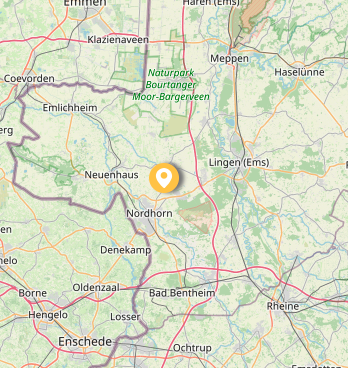
- URL with a pin on the map:
https://osmand.net/map/?pin=52.491143,7.116394#9/52.3924/6.3116
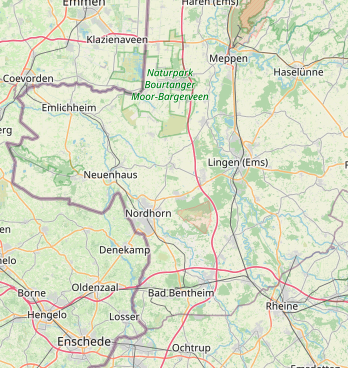
- URL without a pin on the map:
https://osmand.net/map/#9/52.3924/6.3116
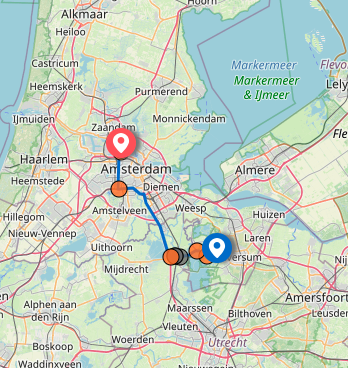
- URL with navigation:
osmand.net/map/navigate
Depending on the specified parameters, URL strings can contain:
- latitude: latitude value as a number.
- longitude: longitude value as a number.
- start-finish: coordinates for navigation.
- profile: navigation profile (e.g., car, bike).
- zoom: zoom level.
- Weather –
osmand.net/map/weather
For example, you can directly access the weather page with specified coordinates:
https://osmand.net/map/weather/#9/52.2394/21.0362
-
Account –
osmand.net/map/account -
Configure Map –
osmand.net/map/configure/ -
Tracks –
osmand.net/map/mydata/tracks -
Favorites –
osmand.net/map/mydata/favorites -
Settings –
osmand.net/map/settings -
Plan a Route -
osmand.net/map/plan -
Direct link to the current Explore page -
osmand.net/map/search -
POI details –
osmand.net/map/poi/ -
Map object without POI data (for example, a building) –
osmand.net/map/obj/